
You can get a working client portal running this session: enable it in your platform settings, lock in a custom domain, build one workspace per client, and turn on secure access before you invite anyone. A successful quick setup means a client can log in, see their files, download what they need, and upload something back. Everything past that is refinement.
TL;DR:
- Using a custom domain and locking it ensures trust and prevents accidental link breakage during the client portal setup.
- Each client should have a dedicated workspace with consistent folder naming to safeguard privacy and streamline navigation.
- Starting with a pilot client helps identify user experience issues early and avoids widespread deployment of unrefined portals.
- Implement multi-factor authentication and activity logging as critical controls to reduce breach risk, especially for portals managing sensitive data.
- An all-in-one platform like Aria significantly shortens setup time by integrating client management, file sharing, and automation into a single dashboard.
Table of Contents
- Client Portal Setup: Turning On the Portal and Locking Your Domain
- Structuring Workspaces and Setting Permission Levels
- Branding and the First Message a Client Sees
- Getting File Uploads and Version Control Right
- Choosing an Access Method That Won't Frustrate Clients
- Why a Pilot Test Beats a Big Launch
- Fixing the Problems Everyone Hits First
- Should You Build This Yourself or Use an All-In-One Platform?
- What Actually Moves the Needle on Client Adoption
- Launching a Client Portal With Aria
- Where to Go Deeper on Setup and Security
- Sources
Client Portal Setup: Turning On the Portal and Locking Your Domain
Most platforms bury this toggle in a place you would not expect. Look under Settings → Client Portal or Settings → Scheduling in most SaaS dashboards. That is where the master switch lives, along with the fields for naming your portal and setting who can see it.
Here is the actual sequence for a working client portal setup:
- Flip the portal to "on" in the main settings panel.
- Choose a domain or slug. Something like
portal.yourbusiness.comreads as more trustworthy than a generic subdomain your provider assigned by default. - Lock the domain once you pick it. Locking prevents an accidental edit from breaking every link you have already sent out.
- Preview the portal exactly as a client would see it, not through your admin view.
- Copy the live link and send yourself a test invite before anyone else gets one.
If you are running a hosted SaaS product, this whole process takes minutes. Self-hosted installs are a different animal. They typically require virtual host setup, SSL certificates, and runtime configuration files, which puts the job squarely in a developer's lap rather than yours. If that describes your situation, hand this section to whoever manages your server before you touch anything else.
Structuring Workspaces and Setting Permission Levels
One workspace per client. No exceptions, no shared folders "just for now." That single rule prevents almost every privacy mistake that shows up later, because a client browsing their own workspace should have zero chance of stumbling into someone else's contract or invoice.
Inside each workspace, a repeatable folder set keeps everyone oriented:
- Deliverables — finished work ready for the client to review.
- Uploads — a landing zone for anything the client sends you.
- Contracts — signed agreements, statements of work, renewals.
- Reference — brand assets, style guides, anything they gave you at kickoff.
Permission levels follow the same logic. Staff roles should map directly to portal roles: an account manager gets edit access to their assigned clients only, a bookkeeper sees financial folders across accounts, and a contractor sees exactly one workspace and nothing else. This kind of record-level isolation is what keeps a scaling agency from turning into a liability the moment someone forgets to double-check a share link.
Pro Tip: Name folders identically across every workspace ("01_Deliverables," "02_Uploads") so your team can navigate by muscle memory instead of hunting for where a particular client keeps things.
Branding and the First Message a Client Sees
A client portal setup succeeds or fails on trust signals long before anyone touches a file. Your logo, a consistent color palette, and that custom domain from earlier all tell a client this is legitimate, not a random link buried in a forgotten email.
Two written pieces matter more than any visual polish:
- The welcome email, sent before first login, needs the purpose of the portal, the link itself, and exactly two next steps ("log in and review your welcome packet, then upload your signed contract").
- The portal greeting on first sign-in should repeat the same clarity: what this space is for, and where to click first. Skip the marketing language here entirely.
Check both for basic accessibility (readable contrast, plain language) and localization if you serve clients in more than one language.
Getting File Uploads and Version Control Right
File exchange has to work in both directions, or the portal becomes a one-way filing cabinet nobody trusts. Confirm clients can upload as easily as they download, and turn on large-file support if you regularly work with video, high-resolution design files, or bulky PDFs.
A few settings prevent the most common breakdowns:
- Turn on version history so a client's third revision does not overwrite the first two.
- Set upload limits and accepted file types explicitly. Do not leave defaults that block a common format your clients actually use.
- Use structured document requests with due dates and automatic reminders instead of chasing files by email.
- Test an upload from an actual client device (phone included) before you call this step done.
Tracking view and download activity, upload notifications, and automated reminders for document requests cuts down the repeated "did you get my file?" emails that eat up an afternoon. Test this from a phone, not just your desktop. That is where uploads most often fail.
Choosing an Access Method That Won't Frustrate Clients
The access decision comes down to a trade off between friction and accountability. Magic links (a one click, no-password option) are fast but nearly impossible to trace back to a specific person. Individual logins are slower to set up but give you a real audit trail of who did what.
- Use magic or password links for low-stakes, one-time file drops.
- Require individual accounts the moment more than one person at a client's company needs access.
- Add SSO or SAML, plus multi-factor authentication, whenever the portal holds financial records, health data, or anything else regulated.
- Set a reasonable session timeout so an unattended laptop in a coffee shop is not an open door.
- Turn on audit logs and upload or download notifications so you can see activity without asking.
SSO, MFA, and least-privilege role-based permissions with audit logs are the controls that actually reduce breach risk, since most breaches trace back to stolen or reused credentials rather than some exotic hack.
Pro Tip: If you only harden one thing today, make it MFA. It stops the single most common way client accounts get compromised, at almost zero cost to you.
Why a Pilot Test Beats a Big Launch
Pick one patient client and run the whole workflow with them before anyone else sees the portal: invite, login, one upload, one download. A real pilot with actual tasks surfaces UX and copy problems faster than any checklist review, because you find out where your welcome email confused someone or where a button was harder to find than it looked in testing.
- Invite one client and watch them navigate the portal live, or ask for screen recordings if you cannot watch directly.
- Log every support question, error message, and moment of hesitation.
- Fix the obvious friction points before inviting a second wave.
- Roll out to remaining clients in batches, not all at once, so feedback loops stay manageable.
- Track task completion rate and support contacts per invite as your core adoption metrics going forward.
A practical six-phase sequence covering needs assessment, platform choice, workspace structure, branding, pilot testing, and phased rollout maps almost exactly onto this order for good reason: skipping ahead to full rollout is where most portal launches go wrong.
Fixing the Problems Everyone Hits First
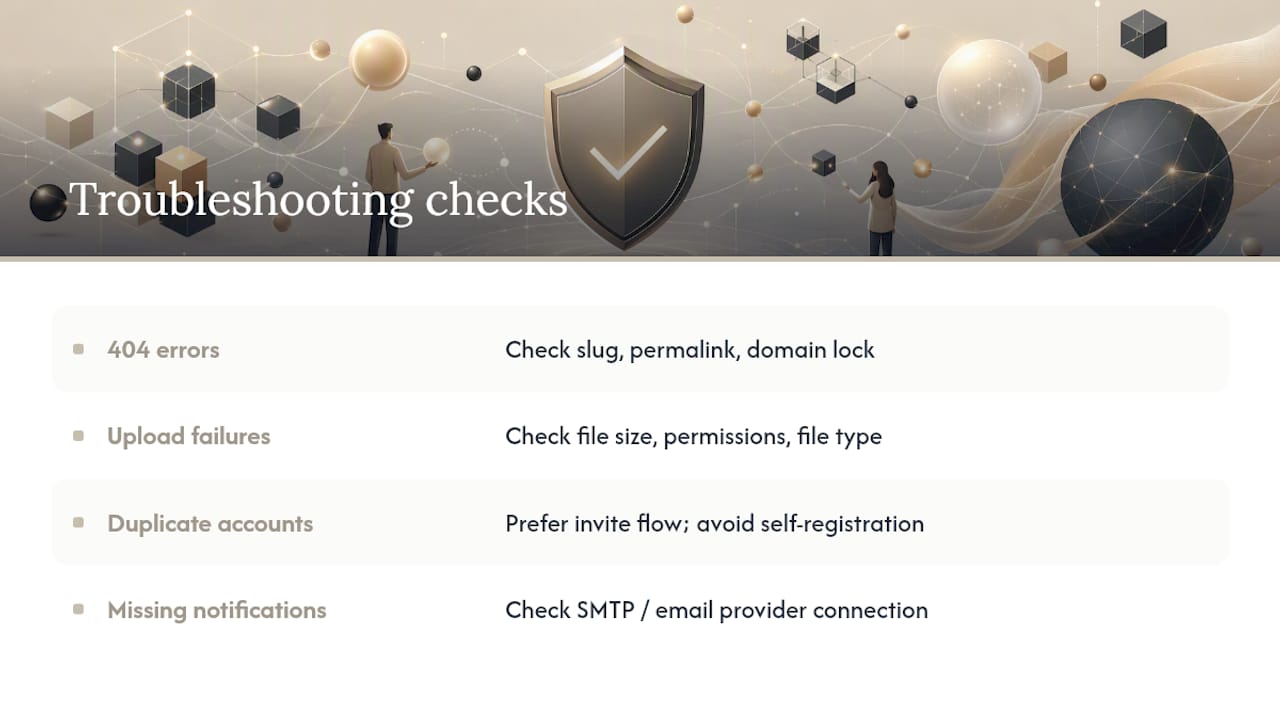
A 404 error almost always traces back to a slug or permalink change, or a domain lock that got skipped. Upload failures usually mean a file-size cap, a permission conflict, or a rejected file type, not a broken feature. Duplicate accounts show up when clients register manually instead of using your invitation flow, so default to sending invites rather than letting clients self-register. If notifications stop arriving, check your SMTP or email provider connection first. That single setting breaks more notification systems than any bug in the portal itself.
Should You Build This Yourself or Use an All-In-One Platform?
Timelines vary sharply by approach. SaaS portals can launch in hours, WordPress plugin setups often take a weekend, and custom development commonly runs two to four months. That gap alone should shape your decision before you touch a single setting.
Consolidating CRM, scheduling, file sharing, and automation into one login cuts the number of moving parts you have to configure and maintain. Fewer systems means fewer places for permissions to drift out of sync or for a client to get lost between tools.
- Fewer logins for both your team and your clients to manage.
- One place to configure permissions instead of syncing rules across separate apps.
- Built-in automations for reminders and notifications, without stitching together a separate service.
- Aria's own feature overview and client management guidance walk through what an integrated setup actually looks like in practice.
A plugin or custom build still makes sense if you need a highly specific workflow no all-in-one platform supports, or if you already have development resources on staff.
What Actually Moves the Needle on Client Adoption
Most setup guides bury the one thing that actually predicts whether clients use a portal: how little friction stands between them and the task they came to do. A feature-rich portal that overwhelms a client on day one fails just as often as a bare-bones one that is missing something basic. The winning pattern is narrower than people expect. Nail the top two or three jobs a client actually needs, and let everything else stay secondary.
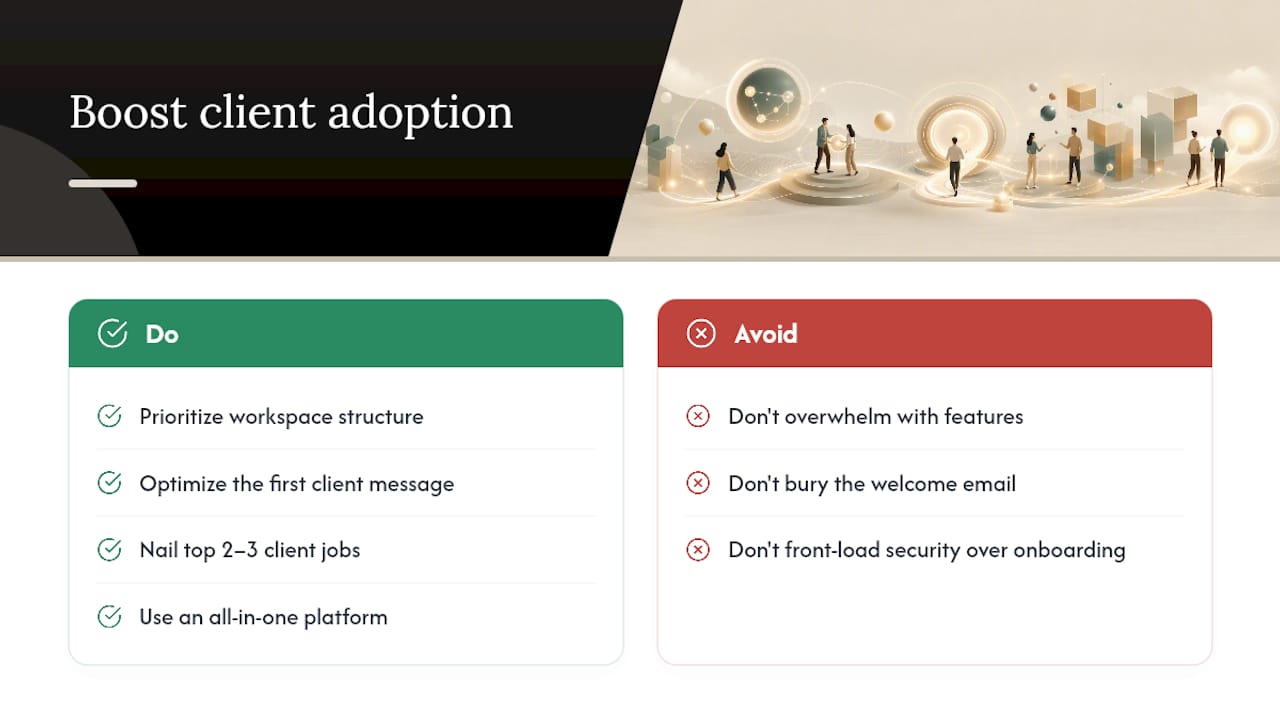
Conventional advice tends to front-load security and back-load onboarding copy, treating the welcome email as an afterthought. That ordering is backward. A client who cannot figure out what to click first will never notice how good your access controls are, because they will not get far enough to need them.
If you prioritize one thing before anything else, make it the workspace structure and the first message a client reads. Everything downstream, security hardening included, works better once clients actually trust the door they are walking through. An all-in-one platform like Aria removes enough of the plumbing work that you can spend that saved time on the parts that actually determine whether clients come back a second time.
— Anastasia
Launching a Client Portal With Aria
An all-in-one platform replaces the patchwork of separate logins, file tools, and CRM subscriptions most agencies and creators stitch together, cutting both setup time and the monthly bill for running them all. If you are a creator, agency, or entrepreneur who wants a client portal live without configuring five different tools to talk to each other, this is built for exactly that.
Because the portal, CRM, scheduling, and automations can share one admin console, you skip the integration work that eats up most DIY setups, and you avoid paying separately for file storage, a scheduler, and a CRM on top of the portal itself. Everything from client workspaces to welcome messages configures from a single dashboard instead of multiple. Take a look at Aria's platform to see what a client portal setup looks like when it is already connected to everything else you run your business on, or review the acceptable use guidelines if you are evaluating it for a regulated client base.
Where to Go Deeper on Setup and Security
- Secure client portal setup phases — the six-phase sequence referenced throughout this guide.
- Client portal buying guide — security controls including SSO, MFA, and audit logging.
- Self-hosted install documentation — server configuration steps for non-SaaS deployments.
- One login for the whole business — the case for consolidating access across tools.
Sources
- Secure client portal — Fastio
- How to create a client portal — Fastio (2026)
- Client portals buying guide — WeWeb
- How to install and set up the Client Portal — Collect